
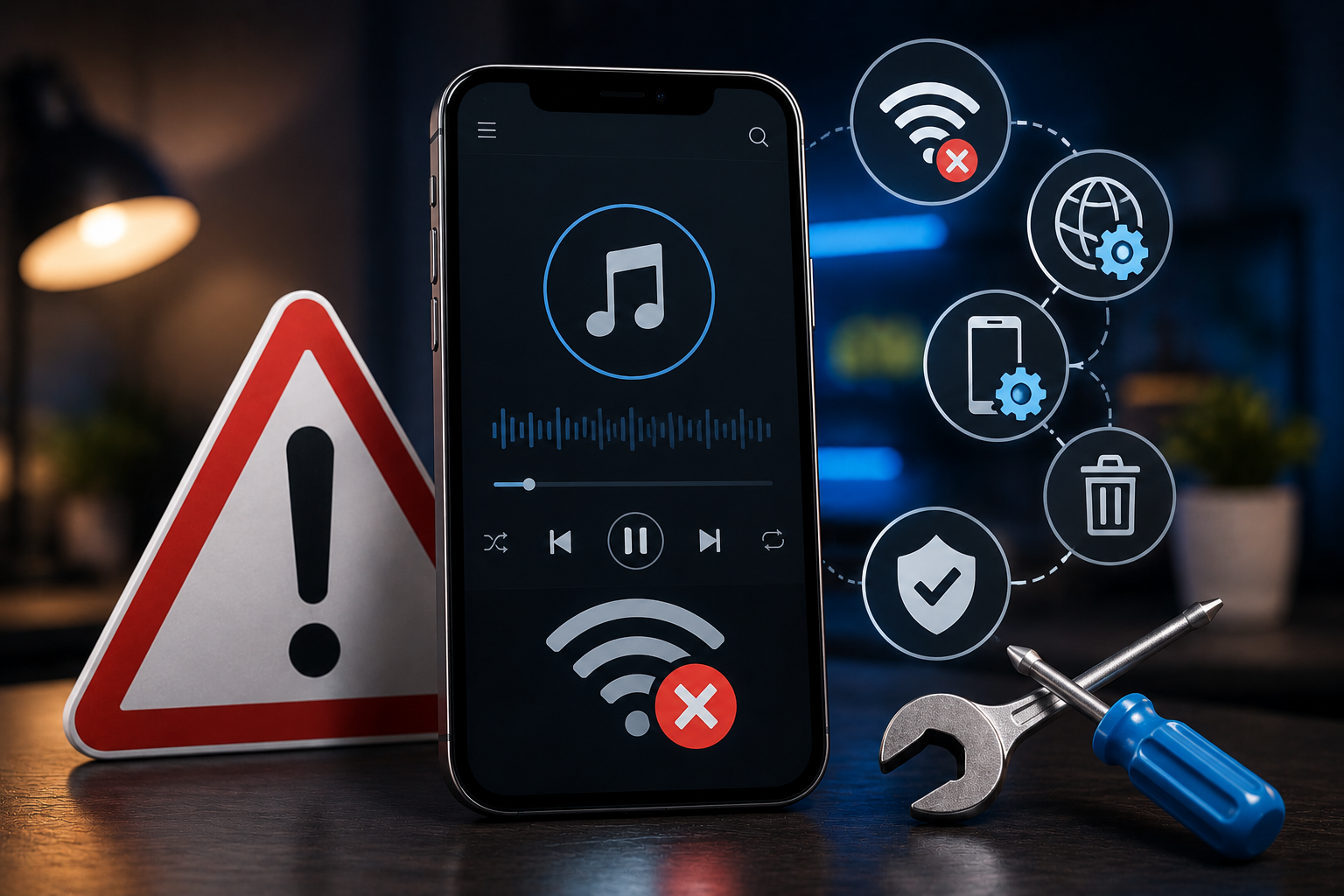
Why Your Tubidy FM Downloads Keep Failing
Nothing is more frustrating than tapping the download button on a track you want to save for your commute, watching the progress indicator spin for a while, and then seeing the download quietly disappear without saving anything. This is one of the most frequently reported problems with Tubidy FM, and it almost always comes down to one of three causes.
The first is a temporary server-side issue. Tubidy FM pulls audio content from external sources, and those sources can occasionally be unreachable or rate-limited. If a download fails immediately after you tap the button — with no progress at all — this is usually the culprit. The fix is simple: wait a few minutes and try again. If the same track consistently fails over multiple attempts across different days, the content may have been removed from the source library.
The second cause is an interrupted network connection during the download. Mobile connections — especially on trains, in buildings with weak signal, or when switching between Wi-Fi and mobile data — can drop momentarily. Tubidy FM does not always resume interrupted downloads automatically; it may silently abandon them instead. To avoid this, initiate downloads when you have a stable, strong connection. If you are on Wi-Fi at home before a trip, that is the ideal time to queue up your offline library.
The third cause is insufficient storage space. Android will prevent new files from being written if storage is full or near-full, but the error is not always communicated clearly within apps. If downloads consistently fail and your connection is solid, check your device’s available storage: go to Settings → Storage and see how much free space you have. Tubidy FM’s audio files are typically a few megabytes each for standard quality, but a large offline library adds up quickly. Aim to keep at least 500 MB free to give downloads room to complete without interruption.
Quick fix checklist for failing downloads:
- Check your internet connection — switch to Wi-Fi if on mobile data
- Try the download again after a few minutes
- Check available storage in Android Settings
- Try a different track to confirm whether the issue is track-specific or app-wide
- Close and restart Tubidy FM, then attempt the download again
Songs Downloaded but Not Playing Offline
You are certain you downloaded a playlist before getting on the plane, but when you open Tubidy FM in airplane mode, the tracks either fail to play or are simply missing. This is a surprisingly common situation, and it happens for a few different reasons.
The download completed but the file is corrupt. Network interruptions during download can result in a partial file that appears to have saved successfully but cannot actually play. If a track shows as downloaded but produces an error when you tap it offline, this is likely the issue. The solution is to delete the track from your library and re-download it on a stable connection.
The app lost track of downloaded files after an update or cache clear. Tubidy FM maintains an internal database of what has been downloaded and where those files are stored on the device. If you recently updated the app, cleared its cache, or moved the app to an SD card, this database can become out of sync with the actual files. In this case, the files may still exist on your device but the app no longer knows about them. Try navigating to Tubidy FM’s downloaded section directly — if tracks appear there, the library index is intact. If the downloaded section appears empty despite you having saved files, the index has been lost and you will need to re-download your content.
SD card issues. If you configured Tubidy FM to save downloads to an SD card and that card is slow, corrupted, or was ejected and re-inserted, playback from it can fail. Android apps can also lose write permissions to SD cards after system updates. Go into Settings → Apps → Tubidy FM → Permissions and confirm that storage permissions are granted. If you are using an older or budget SD card, consider switching storage to internal memory for reliability.
Airplane mode was enabled before the download fully completed. Downloads that appear to finish just as you are switching to airplane mode may not have fully flushed to disk. Always wait a minute after your last download completes before enabling airplane mode, to give the file system time to finalize writing.
Audio Skipping, Stuttering, and Gaps During Playback
Offline playback should be smooth — the audio is stored on your device, so there is no network to blame. If you are experiencing skipping, stuttering, or gaps between tracks while playing downloaded content, the problem is elsewhere.
Insufficient RAM. Tubidy FM needs a small amount of active memory to buffer the next track and manage the playback pipeline. On devices with limited RAM (under 2 GB), running Tubidy FM alongside other apps — a browser, navigation, social media — can cause the system to aggressively kill background processes, including the audio buffer. The result is stuttering or complete playback interruption when you switch apps. To test whether this is your issue, close all other apps and play a downloaded track. If playback is smooth with nothing else running, RAM pressure is the cause.
The fix is to reduce the number of background apps. On most Android devices, you can do this from the recent apps button — swipe away apps you are not actively using before starting a listening session. Some Android versions also allow you to lock Tubidy FM in the recent apps view so it is not killed by the system; press and hold the app card to look for a lock icon.
The audio file itself is corrupt or in an unsupported encoding. Occasionally, a downloaded track may have been encoded at the source in a way that causes playback issues. Signs of this are stuttering on a specific track while other tracks play fine. Delete the affected track and re-download it. If the problem persists with the same track, it is a source-side encoding issue and the track may simply not play reliably.
Device audio focus conflicts. Android’s audio focus system is designed to pause one audio source when another starts. If another app — a notification sound, a navigation alert, a game — briefly requests audio focus and does not properly return it, Tubidy FM’s playback can stall. This most commonly happens with navigation apps and podcasting apps running in the background. For pure music sessions, put your phone in Do Not Disturb mode to suppress notification sounds that can trigger audio focus conflicts.
Playlist Organization Problems: Tracks Out of Order or Missing
Tubidy FM lets you build custom playlists, and for most users this works well. But some users encounter specific organizational headaches: tracks that reorder themselves unexpectedly, playlists that appear empty after being carefully built, or favorites that disappear.
The shuffle setting is enabled and mistaken for reordering. This sounds obvious, but it is extremely common. If your playlist plays in a different order every session, check whether shuffle mode is active. The shuffle toggle is accessible from the Now Playing screen. Tap it to confirm it is off if you want consistent playback order.
Playlist data was lost after a reinstall or data clear. Tubidy FM stores playlist and library data locally on the device. If you uninstalled and reinstalled the app, performed a factory reset, or cleared the app’s data via Android settings, this information is wiped. Unlike streaming services with cloud-synced libraries, Tubidy FM’s local playlist data does not automatically back up to the cloud. This means rebuilding playlists after a reinstall is unavoidable with the current version of the app.
To minimize the impact of this going forward, keep your playlist names and track lists noted somewhere — a simple notes app works fine. If you keep a record of your carefully curated playlists, rebuilding them after a reinstall takes minutes rather than being a total loss.
Tracks showing as unavailable inside a playlist. If a track in your playlist becomes unavailable in the Tubidy FM library (because it was removed from the source), it will show as unplayable. The playlist itself is intact — only that specific track is affected. Remove the unavailable track from the playlist and search for an alternative version if one exists.
Battery Drain While Using Tubidy FM
Some users notice that Tubidy FM consumes more battery than expected, particularly during long listening sessions. Understanding why helps you manage it.
Screen-on listening. The biggest battery drain is not Tubidy FM itself — it is your screen. If you are playing music with the screen on, the display accounts for the majority of power consumption. Lock your screen during listening sessions; the playback controls remain accessible from the lock screen.
Streaming vs. offline playback. If you are listening to non-downloaded tracks via streaming rather than offline, the radio/network module stays active and consumes significantly more power than local file playback. If battery life during music sessions is a concern, download your most-listened-to tracks and playlists in advance and switch to offline mode during battery-sensitive periods.
Background process behavior on battery-saving modes. Android’s battery saver modes (and manufacturer-specific power management features from brands like Huawei, Samsung, Xiaomi, and Oppo) can restrict background apps aggressively, sometimes killing Tubidy FM’s audio service when the screen is off. The result is that music stops playing a few minutes after you lock your phone. To fix this, add Tubidy FM to your battery optimization whitelist: go to Settings → Battery → Battery Optimization (the exact path varies by Android version and manufacturer), find Tubidy FM in the list, and set it to Don’t optimize or Unrestricted. This allows the app to keep its audio service running in the background.
The App Crashes on Launch or Freezes Randomly
A Tubidy FM crash on launch is usually caused by one of two things: a corrupted app cache or a compatibility issue with the installed version of Android on your device.
Clearing the cache. Go to Settings → Apps → Tubidy FM → Storage → Clear Cache. This removes temporary files that may have become corrupted without touching your downloaded music or playlist data. Relaunch the app after clearing the cache. This resolves the majority of launch crashes.
Clearing data as a last resort. If clearing the cache does not help, clearing the app’s full data (Settings → Apps → Tubidy FM → Storage → Clear Data) will reset the app to a fresh state. Note that this will erase your playlists, library bookmarks, and app settings. Your downloaded audio files may or may not be preserved depending on where they were saved. Only do this if other fixes have failed.
Android version compatibility. Tubidy FM is optimized for modern Android versions. Very old devices running Android 8 or earlier may experience instability. If you are on an older device and crashes are frequent, there may not be a straightforward fix — the app’s requirements may simply exceed what the older OS version provides.
Reinstalling the app. If cache and data clears do not resolve crashes, uninstall and reinstall Tubidy FM from the official source at tubidyplayerdownload.com. Sideloaded APKs from unofficial sources are sometimes outdated or modified in ways that cause instability. Using the official download ensures you have the current stable version.
Radio Stations Not Loading or Buffering Constantly
Tubidy FM includes live radio streaming alongside its offline music playback. Radio content behaves differently from downloaded tracks — it requires a continuous internet connection, and its quality depends heavily on your network.
Buffering on radio stations is almost always a bandwidth issue. Live radio requires a sustained connection rather than a burst download. If you are in an area with intermittent signal or on a congested network, buffering will be frequent. Switching to a Wi-Fi connection — even a coffee shop’s public Wi-Fi — typically resolves buffering for radio if mobile data is the issue.
Radio stations failing to load at all can be caused by the station’s stream URL having changed or gone offline, or by geographic restrictions on certain station streams. If a station that previously worked now shows an error, try a different station in the same genre to determine whether the problem is app-wide or station-specific. If only one station is affected, the issue is on the broadcaster’s side and there is nothing within the app you can change.
High-bitrate radio streams on slow connections. Some international radio stations stream at high bitrates (192 kbps or higher). On a slow mobile connection, these streams will buffer constantly even if lower-bitrate streams play without issue. If you are on a limited data connection and experiencing radio buffering, try browsing to a station that explicitly lists a lower bitrate, or switch to a locally popular station that may have a lower-bitrate option.
Managing Your Offline Library to Avoid Storage Bloat
Over time, a downloaded music library grows significantly. Users who download albums, radio-recorded tracks, and playlists regularly can find their device storage consumed without realizing it. Tubidy FM does not automatically expire or remove old downloads.
Periodically audit your downloads. Navigate to the downloaded section in Tubidy FM and remove tracks and albums you no longer listen to. This is the most direct way to reclaim storage.
Download at standard quality when storage is limited. If the app offers quality options for downloads, standard quality (typically 128 kbps) reduces file size significantly compared to high-quality options (256–320 kbps), while remaining perfectly acceptable for casual listening on phone speakers or earbuds. Reserve high-quality downloads for music you listen to carefully and repeatedly.
Use playlists as a curation layer. Rather than downloading everything you come across, build specific playlists for your recurring use cases — commute, gym, evening wind-down — and only download those. A focused library of 200–300 tracks covers most listening scenarios without consuming excessive storage, and it is much easier to navigate than a bloated library of thousands of files you have largely forgotten.